Home / News / Blogs / Matching assistive technology to classroom tasks
In today’s classrooms, students access information in many different ways. Textbooks, worksheets, digital platforms, diagrams, and handwritten notes all require different forms of visual or tactile access.
For students with low vision or who are blind, the right assistive technology can make the difference between simply receiving information and actively participating in learning.
But no single tool meets every need. Some tasks require portable magnification at a desk, while others benefit from a stable workstation, braille access, or software that combines magnification with speech.
Matching assistive technology to specific classroom tasks helps students stay independent, engaged, and confident throughout the school day. From reading printed materials to accessing digital content or exploring tactile diagrams, the right tools support participation across subjects and grade levels.
The following solutions illustrate how different technologies can support everyday learning activities in the classroom.
Accessing printed materials at the desk
explorē 12
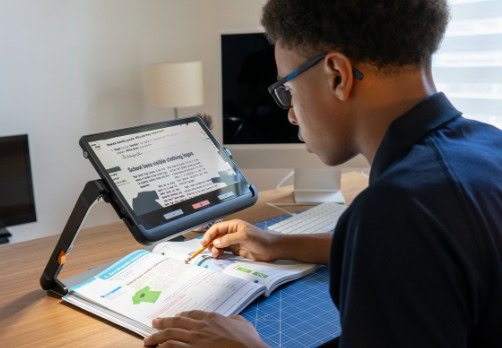
A portable 12-inch video magnifier designed to support independent learning in the classroom. Its large screen and intuitive controls help students access textbooks, worksheets, and printed materials comfortably at their desk.
The adjustable stand and smooth magnification make it easier to move between reading, writing, and viewing classroom visuals, helping students stay engaged and participate alongside their peers.
In the classroom, explorē 12 helps:
Support independent reading and written work
Improve access to printed materials and classroom visuals
Reduce reliance on adult assistance
Encourage confidence and sustained engagement
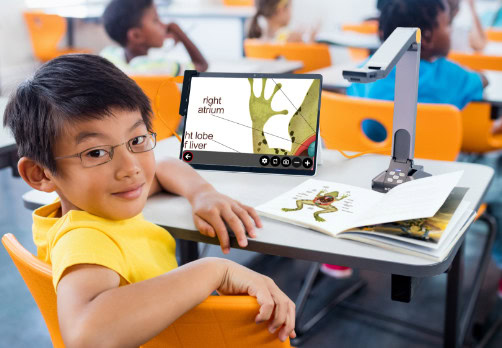
The explorē line includes 5-inch and 8-inch portable video magnifiers designed for younger learners and early independence. Their simple, lightweight format makes them easy to introduce in early grades for reading, classroom activities, and confidence-building.
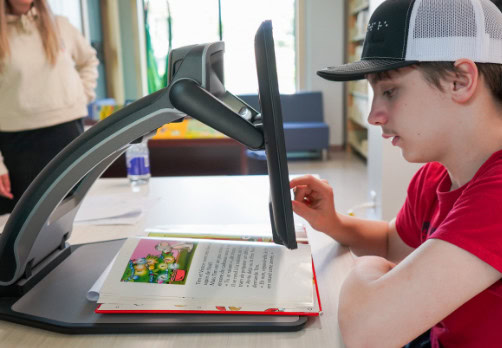
A desktop video magnifier with a large, high-definition screen and powerful optical zoom. Reveal 16 provides a stable, desk-based solution that supports learners from early childhood through high school, especially when sustained reading or detailed visual work is required.
Its simple, reliable setup helps students access printed materials with fewer interruptions, supporting independence and participation across classroom activities.
In the classroom and learning spaces, Reveal 16 helps:
Support extended reading and detailed visual tasks (worksheets, diagrams, charts)
Provide a consistent magnification station for daily routines
Reduce the need for constant adjustments during lessons
Support independent access to print materials across grade levels
Reveal 16 is also well suited for library and resource settings, offering a dependable magnification station for students to explore books and printed content at their own pace.
Software combining magnification and text-to-speech to help students access digital and printed materials independently. Built-in AI-supported tools assist with reading printed text, handwriting, and math, supporting comprehension and task completion across subjects.
In the classroom, Prodigi for Windows helps:
Provide access to worksheets, textbooks, and digital content
Support reading comprehension and longer assignments
Make math and handwritten content more accessible
Create audio or simplified versions of learning materials
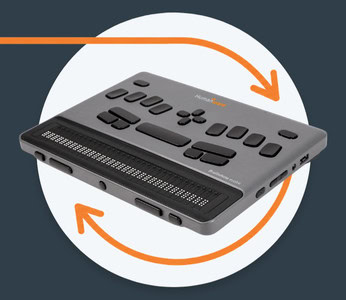
A braille-based learning device that combines the simplicity of KeySoft with full Windows 11 access. Students can use braille while working with Microsoft 365 and Google Workspace, supporting participation in the same digital tools used by classmates.
In the classroom, BrailleNote evolve helps:
Provide braille access to mainstream applications
Support note-taking and assignment completion
Enable independent reading and writing routines
Support full participation in digital classroom activities
Recognized by TIME as Best Accessible Innovation (2025)
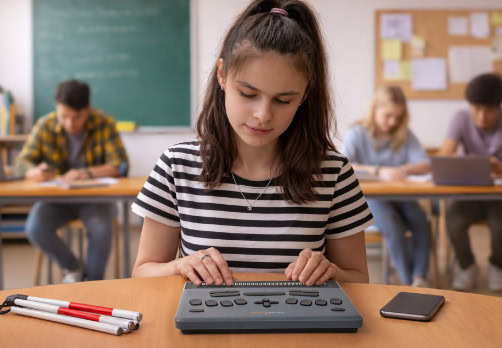
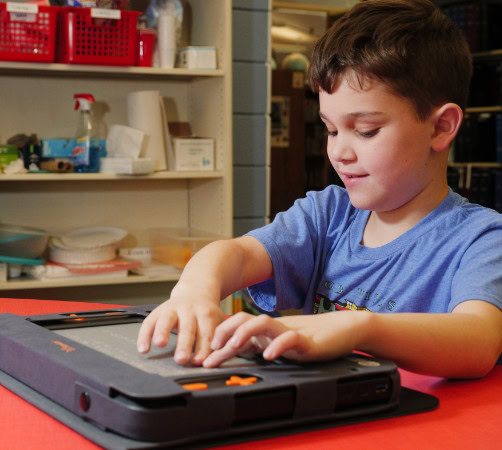
Monarch is a multi-line braille and tactile graphics device designed for real time learning. It lets students access braille text and tactile graphics such as diagrams, charts, maps and graphs on the same dynamic display, so they can explore content independently and participate fully in STEM and other visually rich subjects. A built-in tactile graphics viewer and TactileView mode render tactile images on demand, reducing delays and helping students stay aligned with classroom instruction.
In the classroom, Monarch helps:
Provide real-time access to tactile diagrams, charts, and tables
Strengthen braille literacy and tactile exploration
Support participation in STEM subjects
Reduce reliance on 1:1 adult support
Also supports educators and teachers of the visually impaired by:
Reducing lesson preparation time by minimizing formatting and tactile production delays